Web app · Delays and notices Record the main contractor's reply
For the owner and the contracts manager
View as Markdown You type the reply yourself. No AI reads it. docketplan sends nothing, and it does not say what a reply means.
Open the notice
- Open the notice you sent. The notice says Sent, with the day.
- Select Record reply.
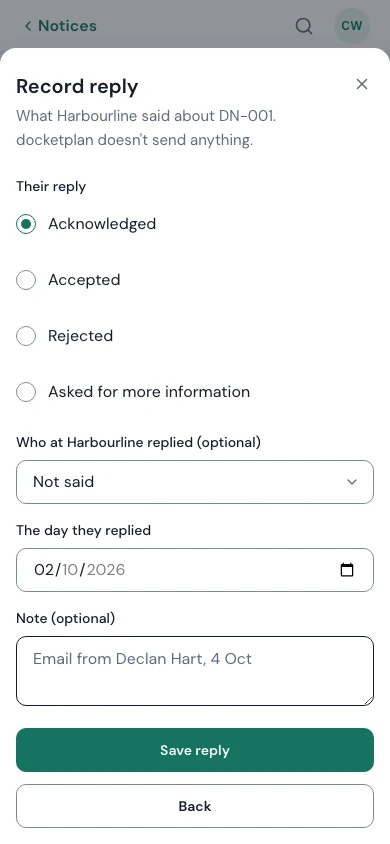 The form to record a reply.
Say what they replied
- Pick one: Acknowledged, Accepted, Rejected or Asked for more information.
- If you picked Rejected, write Why they rejected it. If you picked Asked for more information, write What they asked for.
- In Who at Harbourline replied (optional), pick the person.
- In The day they replied, pick the day.
Keep their words
- Add a Note (optional).
- To keep their email or letter, paste it into Their reply (optional). Or attach it. You can attach up to 5 files.
- Select Save reply.
The reply is kept with the notice. To change it later, select Change reply.
NextExport a delay record for a dispute Checked against the app on 25 November 2026
